
10 June 2026
What is Customer Lifetime Value (CLV)?
Learn how to calculate, measure, track and improve the lifetime value of a customer using a simple formula to power the performance of your business.
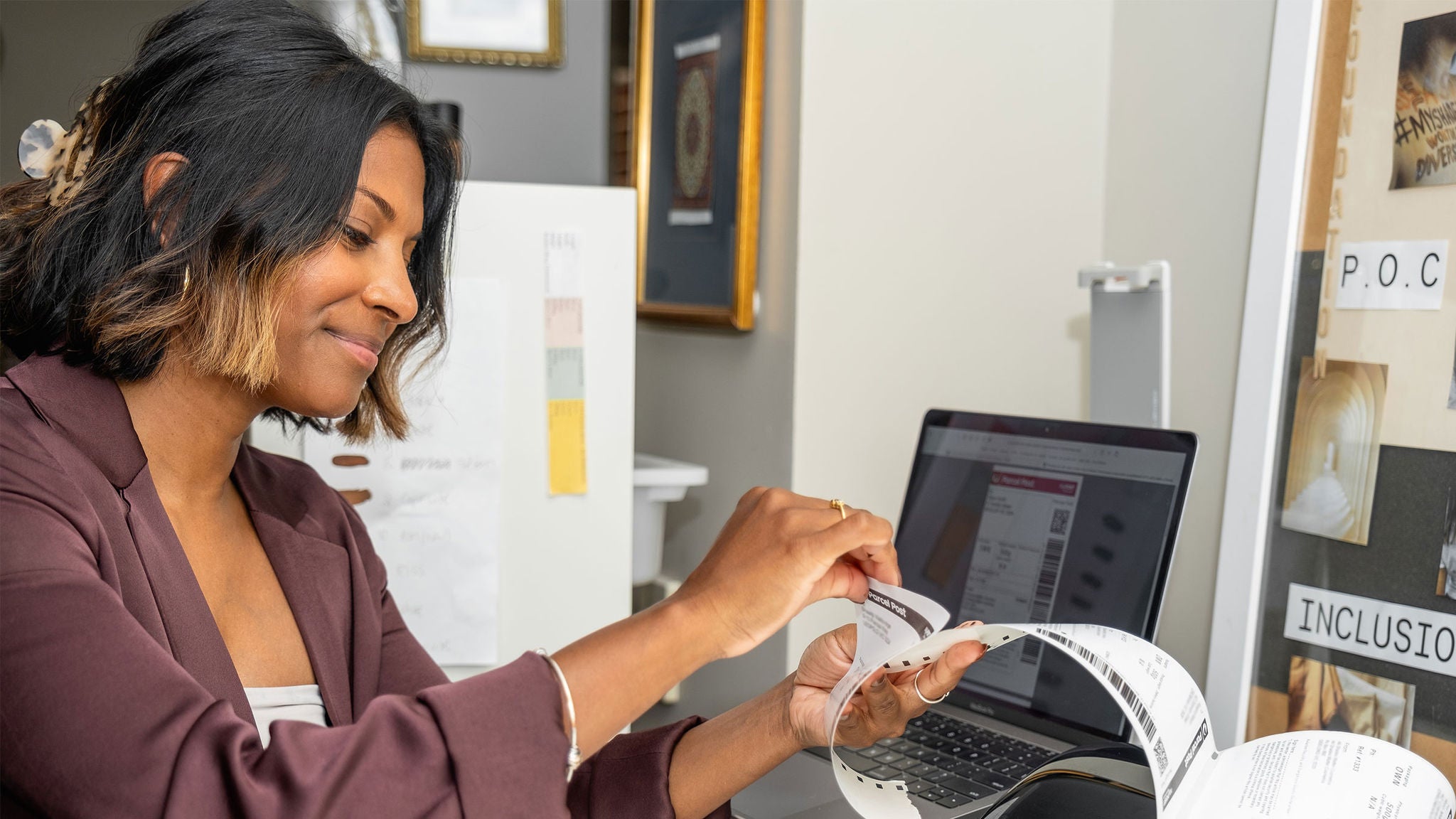
The quicker you print those shipping labels, the faster you can lodge those parcels. Here’s your snap guide to boosting label printing efficiency with the right printer, label size and printing in-store.
When you choose the label printing option that’s right for your business, you can save time and money, as well as increase the likelihood of your parcels being delivered to the right address the first time.
From choosing the right printer and labels for both domestic and international sending, to setting up your printer correctly for smooth label printing, we’ve got you covered.
Here are some tips to make printing your shipping labels quick, easy and accurate so those final steps of your sending process are seamless.
There are three size options for packages being sent within Australia:
You can change the size of your shipping labels in your MyPost Business account. Simply click on the Carriers tab, select MyPost Business and then Print Settings and choose from the above three options.
When sending parcels internationally, follow these steps:
A thermal printer is an ink-free option for printing shipping labels, making it a popular choice of established small businesses or medium to large eCommerce businesses.
This type of printer is best for quality label printing at a high speed, increasing the efficiency of your labelling process. While thermal printers can be more expensive than a laser or inkjet printer, its ink-free feature means you save on ink cartridges.
Small or new eCommerce businesses often use a standard A4 laser or inkjet printer, simply because they’re an affordable option that you may already have in your home or workplace. You can also get free A4 label sheets from any Post Office for use with an inkjet printer.
Whichever printer you choose, make sure your MyPost Business print settings are pointing to the correct one.
When you’re setting up a new printer, always print a sample before doing a full print run. You can do this in MyPost Business, by selecting ‘Generate a sample label’ under Settings and then Labels.
And if your label margins aren’t lining up, you can change the label position in MyPost Business. Follow the instructions in your account to adjust the top, bottom, left or right margins so they line up with your label size. Also make sure you’re not scaling the PDF when printing.
You can now print labels for free at any Post Office and lodge parcels on the spot. Here’s how:
You’ll have 4 days to print your labels in-store before the QR code(s) expires.
If you’re printing your labels at home, you’ll have 48 hours to access and download the labels before the link expires.
From automating shipping label creation to booking parcel pickups, MyPost Business is here to help eCommerce businesses save time and money every send.
10 June 2026
Learn how to calculate, measure, track and improve the lifetime value of a customer using a simple formula to power the performance of your business.
23 April 2026
Get a head-start on planning for the eCommerce peak season with this checklist for online businesses.

02 February 2026
Explore online shopping trends from the Australia Post eCommerce Report, plus practical takeaways you can use to drive growth now