Update to our CN23 label
From 12 February 2026, Contract business customers will be able to print A6-sized CN23 labels via Parcel Send, eParcel and API.
CN22 label
What is it?
The CN22 label is an A6-sized customs declaration which can be used by business contract customers for:
- International Express
- International Standard without Signature
Printer layouts for this label include:
- A4 page – up to 4 A6 labels per page
- Thermal label – 1 A6 per page
Why use it?
- Reduces international label processing time for merchants.
- Meets customer demand for a smaller-sized label for tracked international products.
- The new design provides easier-to-read delivery details for international postal operators.
Who is it suitable for?
The CN22 label has been designed for small, medium and large business contract customers who use our International Express and Standard services to send small, lightweight and low-value goods.
Eligibility criteria
International Express and Standard without Signature parcels must meet the criteria below to be eligible for the CN22 label:
- Parcel dimensions are ≤90cm (L + W + D combined), with the longest side being ≤60cm.
- Maximum total consignment value is A$500.
- Maximum parcel weight is 2kg (5kg for the US).
- Destination is one of the countries listed below.
- No Signature on Delivery for International Standard parcels.
Countries that accept the CN22 label
| Product | Country | Zone |
|---|---|---|
| Express | All except China | 1, 3 - 9 |
| Standard without a signature on delivery | Belgium | 8 |
| Canada | 4 | |
| Croatia | 8 | |
| Denmark | 8 | |
| Estonia | 8 | |
| France | 7 | |
| Germany | 7 | |
| Hong Kong | 3 | |
| Hungary | 8 | |
| India | 3 | |
| Ireland | 6 | |
| Israel | 9 | |
| Japan | 3 | |
| Korea, Republic of (Note – Democratic Republic of Korea does not allow the label) | 3 | |
| Lithuania | 9 | |
| Malaysia | 3 | |
| Malta | 8 | |
| Netherlands | 7 | |
| New Zealand | 1 | |
| Philippines | 5 | |
| Poland | 8 | |
| Portugal | 8 | |
| Singapore | 3 | |
| Slovenia | 8 | |
| Spain | 7 | |
| Sweden | 7 | |
| Taiwan | 2 | |
| Thailand | 3 | |
| United States | 4 | |
| United Kingdom | 6 | |
| Vietnam | 3 |
You’ll need to opt-in to select the CN22 label and make a few small simple changes on screen, otherwise the system will continue to print the CN23 label for International Express and Standard.
We’ve created a handy user guide (PDF 531kB) to help you through the process, or follow the steps below:
- Log in to eParcel.
- Click on the Administration tab and then select Merchant Location Details.
- Locate Define International Express and Standard Label Defaults.
- Select A6 (CN22).
- Click Save.
The label can be printed onto adhesive paper with a thermal or regular printer and attached to a consignment. You can request the following layouts:
- A4 page – up to 4 A6 labels per page
- Thermal label – 1 A6 per page
Thermal label – 1 A6 per page instructions
- Login to eParcel.
- Click on the Administration tab and then select Printer Setup.
- Tick the Thermal Printer? checkbox for international services.
- Select Single Plain within the Label Stationary drop down box.
- Click Save.
- Ensure that the thermal printer is connected to the computer.
A4 page – up to 4 A6 labels per page
- Login to eParcel.
- Click on the Administration tab and then select Printer Setup.
- Ensure that Thermal Printer? checkbox is unticked for international services.
- Select Multi Plain within the Label Stationary drop down box.
- Click Save.
- Ensure that the correct printer is connected to the computer.
Note: These printing layouts are only available for CN22 A6 labels.
The system has been configured so that all of the CN22 A6 labels will be printed first, and then CN23 A5 labels, if you have any. This is to enable more efficient sorting and processing for bulk print loads.
For more information please visit the Australia Post Developer Centre or raise a support request.
Parcel Send platform customers
Parcel Send already has this feature enabled.
You’ll need to ensure that all the required fields and information such as weight, dimensions and item value are completed.
Thermal printer 1 label – A6 paper instructions
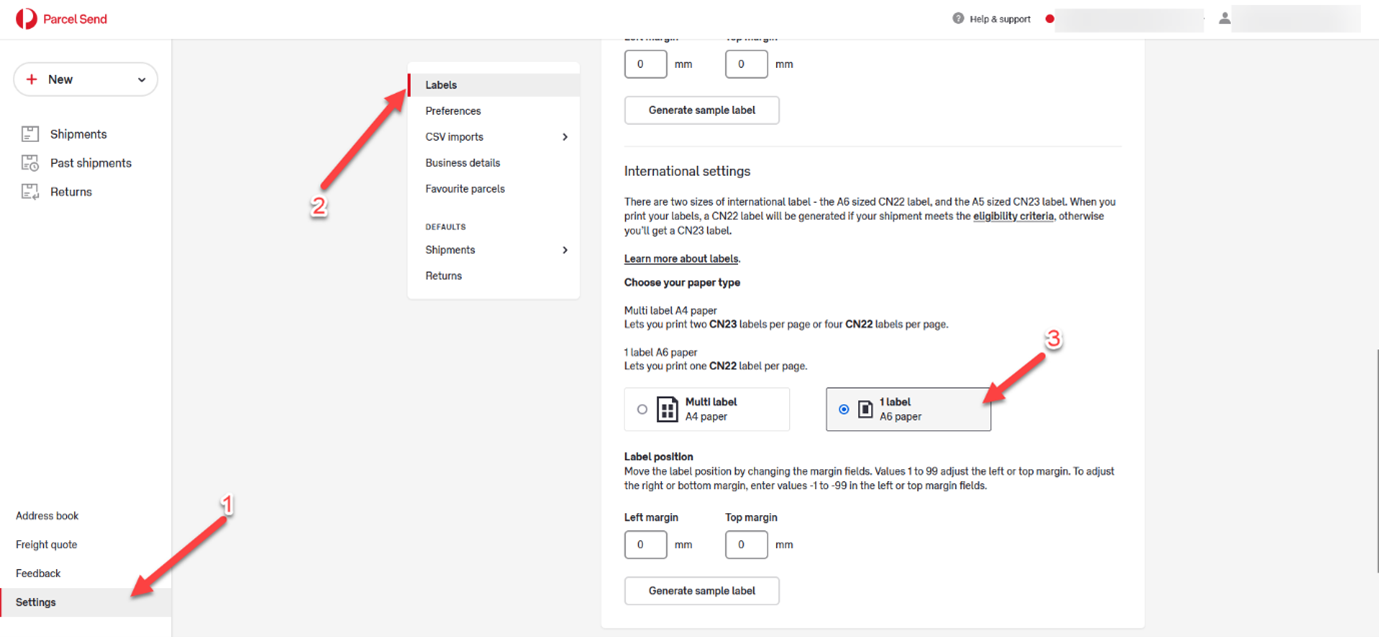
- Click Settings.
- Click Labels.
- Under International settings > Choose your paper type, select 1 label – A6 paper.
Multi label A4 paper (prints up to 4 A6 labels per page) instructions
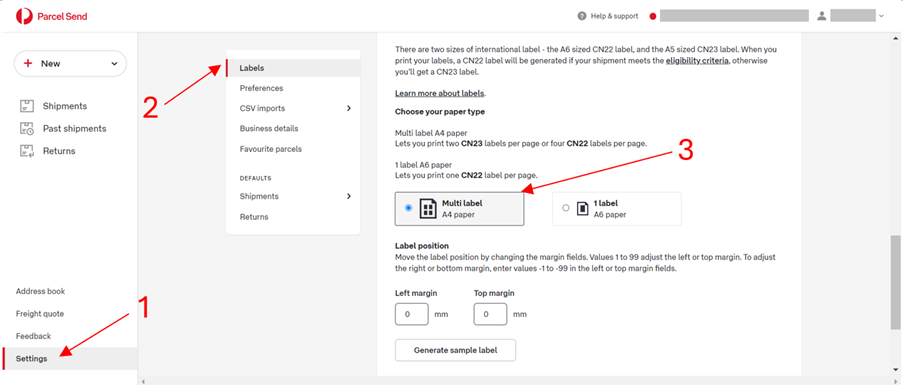
- Click Settings.
- Click Labels.
- Under International settings > Choose your paper type, select Multi Label (A4 Paper).
The system has been configured so that all CN22 A6 labels are printed first, then CN23 A5 labels, if you have any. This is to enable more efficient sorting and processing for bulk print loads.
If you have any questions, you can raise a support request.
API integrated customers
There have been changes made to the ‘Create Label’ API call to support the new International layouts.
If the International preference group is currently used:
- You’ll need to update the layout value to A4-4PP or THERMAL-LABEL-A6-1PP (depending on preference) within the International preference group.
If the International preference group is not used:
- You’ll need to pass the International preference group – see below example:
- You’ll need to update the layout value to A4-4PP or THERMAL-LABEL-A6-1PP (depending on preference) within the International preference group.
The label can be printed onto adhesive paper with a thermal or regular printer and attached to a consignment. You can request the following layouts:
- A4-4PP
- Thermal Label A6 1PP
- ZPL
The default format is PDF, however if you require ZPL it is enabled for the CN22 label only. To enable ZPL functionality, ensure you enter the field “format”: “ZPL” as per the below screenshot.
Please note: If you specify ZPL and CN22 labels aren’t valid, an error will be returned. Similarly, you’ll receive an error when specifying ZPL using a combination of A6 CN22 and A5 CN23 labels.
Please note: These printing layouts are only available for CN22 A6 labels.
For more information please visit the Australia Post Developer Centre or raise a support request.
Customers integrated through a third-party freight system or eCommerce partner
We have sent instructions (PDF 301kB) to your third party provider on how to enable the CN22 A6 label for you, so please contact them directly if you have any questions or issues.
eCommerce partners
There have been changes made to the ‘Create Label’ API call to support the new International layouts.
If the International preference group is currently used:
- You’ll need to update the layout value to A4-4PP or THERMAL-LABEL-A6-1PP (depending on preference) within the International preference group.
- Update your user interface to enable the new layouts.
If the International preference group is not used:
- You’ll need to pass the International preference group – see below example:
- You’ll need to update the layout value to A4-4PP or THERMAL-LABEL-A6-1PP (depending on preference) within the International preference group.
- Update your user interface to enable the new layouts.
The label can be printed onto adhesive paper with a thermal or regular printer and attached to a consignment. You can request the following layouts:
- A4-4PP
- Thermal Label A6 1PP
- ZPL
The default format is PDF, however if you require ZPL it is enabled for the CN22 label only. To enable ZPL functionality, ensure you enter the field “format”: “ZPL” as per the below screenshot.
Please note: If you specify ZPL and CN22 labels aren’t valid, an error will be returned. Similarly, you’ll receive an error when specifying ZPL using combination of CN22 and CN23 labels.
Please note: These printing layouts are only available for CN22 A6 labels.
If you have any enquiries, please raise a support request.
Printing options
You can choose to print on:
- A6 thermal labels
- adhesive paper with the options of 4 labels per A4 page
- A4 paper (place the label inside a plastic sleeve and affix to the parcel as per current process).
CN23 label
What is it?
The CN23 label is a customs declaration that can be used for the following International Outbound Contract services:
- International Express
- International Standard (with and without Signature on Delivery)
The CN23 label is available as an A5-sized label for all customers and also as an A6-sized label for Contract business customers.
The number of CN23 copies that must be affixed to parcels varies from 1 to 4 depending on the destination country and is automatically configured. Additional copies must be placed into a plastic sleeve that can be sealed and affixed to the parcel.
The CN23 label is suitable for all items and all destinations, and must be used instead of the CN22 label if the item weighs over 2kg (over 5kg for the US) and has a total consignment value exceeding A$500.
Contract business customers can print the A6 CN23 label via Parcel Send, eParcel and API. Both A5 and A6 versions will remain available for eParcel and API users, while Parcel Send only has the A6 label available. Contract business customers can choose their preferred size through their printer settings.
How to enable the A6 CN23 label
eParcel customers
You will need to opt-in to select the A6 (CN22/CN23) label and make a few simple changes, otherwise the system will continue to print the A5 CN23 label for International Express and Standard.
Follow the steps below:
- Log in to eParcel.
- Click on the Administration tab and then select Merchant Location Details.
- 3. Locate Define International Express and Standard Label Defaults.
- 4. Select A6 (CN22/CN23).
- 5. Click Save.
The label can be printed onto adhesive paper with a thermal or regular printer and attached to a consignment. You can request the following layouts:
- A4 page – up to 4 A6 labels per page (A4-4PP)
- Thermal label – 1 A6 per page (THERMAL-LABEL-A6-1PP)
- Please note: the A6 CN23 will be available when the layout value is set to either A4-4PP or THERMAL-LABEL-A6-1PP. The A5 CN23 will be available when the layout value is set to A4 paper 1 label per page (A4-1PP).
Thermal label – 1 A6 per page instructions
- Log in to eParcel.
- Click on the Administration tab and then select Printer Setup.
- Tick the Thermal Printer? checkbox for international services.
- Select Single Plain within the Label Stationary drop-down box.
- Click Save.
- Ensure that the thermal printer is connected to the computer.
A4 page – up to 4 A6 labels per page
- Log in to eParcel.
- Click on the Administration tab and then select Printer Setup.
- Ensure that Thermal Printer? checkbox is unticked for international services.
- Select Multi Plain within the Label Stationary drop-down box.
- Click Save.
- Ensure that the correct printer is connected to the computer.
Note: These printing layouts are only available for A6 CN22/CN23 labels. No changes have been made to the printing options available for the A5 CN23 labels.
Parcel Send platform customers
Parcel Send already has this feature enabled systematically.
Please note: the A5 CN23 will no longer be available in Parcel Send.
The label can be printed onto adhesive paper with a thermal or regular printer and attached to a consignment. You can request the following layouts:
- 1 label - A6 paper
- Multi label A4 paper (prints up to 4 A6 labels per page)
- The A5 CN23 is no longer available.
Thermal printer 1 label – A6 paper instructions
- Click Settings.
- Click Labels.
- Under International settings > Choose your paper type, select 1 label – A6 paper.
- Click Save.
Multi label A4 paper (prints up to 4 A6 labels per page) instructions
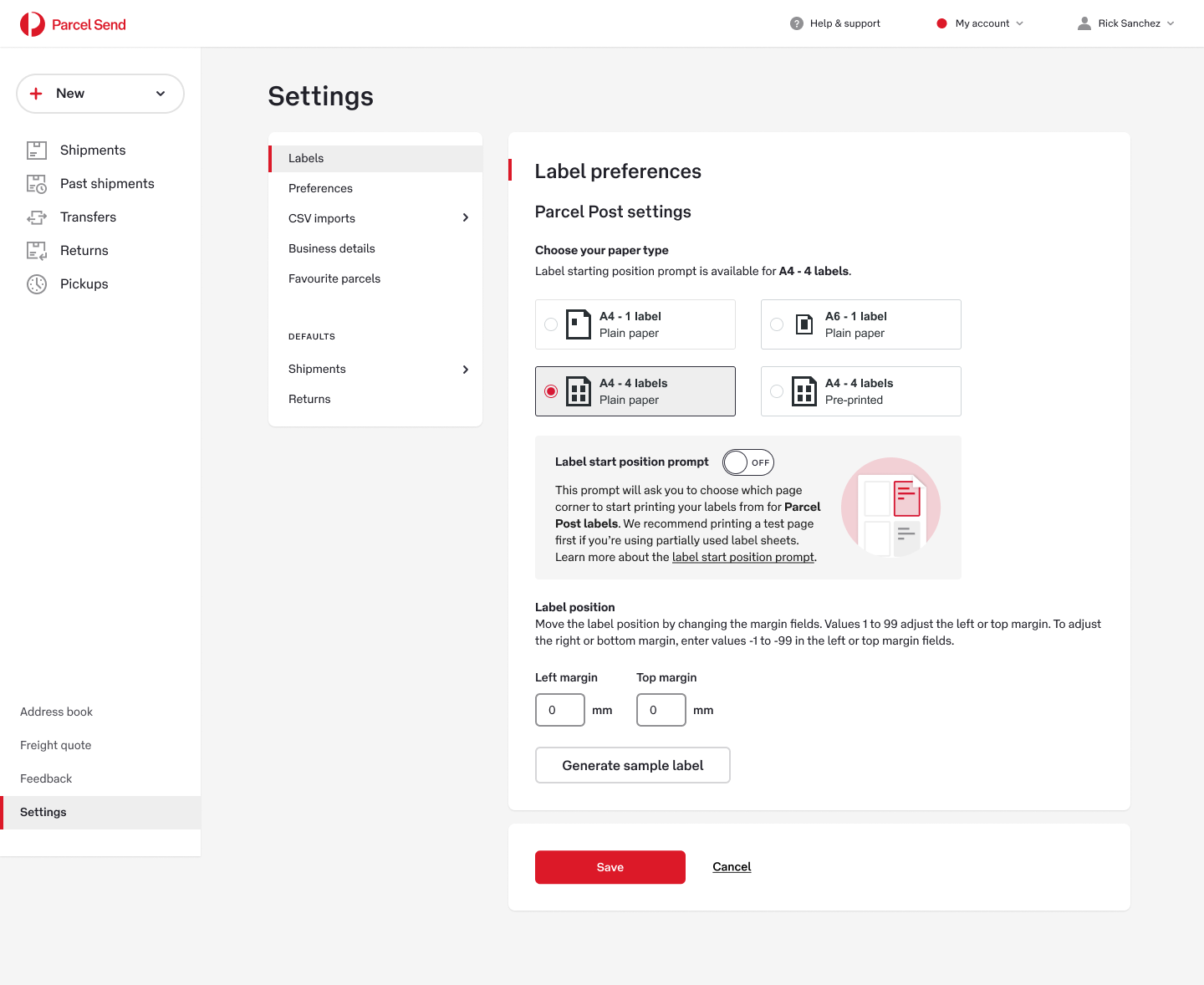
- Click Settings.
- Click Labels.
- Under International settings > Choose your paper type, select Multi label – A4 paper.
- Click Save.
API integrated customers
If the International preference group is currently used:
- You’ll need to update the layout value to A4-4PP or THERMAL-LABEL-A6-1PP (depending on preference) within the International preference group.
If the International preference group is not used:
- You’ll need to pass the International preference group – see example below:
- You’ll need to update the layout value to A4-4PP or THERMAL-LABEL-A6-1PP (depending on preference) within the International preference group.
- Please note: the A6 CN23 will be available when the layout value is set to either A4-4PP or THERMAL-LABEL-A6-1PP.
The A5 CN23 will be available when the layout value is set to A4-1PP.
The label can be printed onto adhesive paper with a thermal or regular printer and attached to a consignment. You can request the following layouts:
- A4-4PP
- Thermal Label A6 1PP
- ZPL
The default format is PDF, however if you require ZPL it is enabled for A6 sized labels (CN22 and A6 CN23) only. It is not enabled for A5 CN23 labels. To enable ZPL functionality, ensure you enter the field “format”: “ZPL” as per the below screenshot.
Please note: If you specify ZPL, you’ll receive an error when using a combination of A6 CN22/CN23 and A5 CN23 labels.
Please note: These printing layouts are only available for A6 labels (CN22 and CN23).
Contact your Account Manager if you need more information. If you’re a new business customer or do not have an Account Manager, call our international team on 1800 007 678 from 8am – 6pm local time Monday – Friday (excluding national public holidays).
FAQs
The CN23 label is an A5 sized customs declaration that is enabled for the following International Outbound Contract services:
- International Express Merchandise
- International Express Documents
- International Standard (with and without Signature on Delivery)
The number of CN23 copies that must be affixed to parcels varies from 1 to 4 depending on the destination country.
Yes. The CN23 customs declaration can continue to be used for all International Express and International Standard shipments.
Yes. We recognise that some customers may prefer to use the CN23 label, in which case our systems will support this selection.
We're reducing the number of International CN23 shipping labels required for Contract Customers – from two to one single label – for 12 countries. Find out more.
We're introducing a new CN23 eParcel label printing layout. Find out more.
The number of copies of CN23 required is dependent on the destination countries. Our system will automatically return the required number of copies to you in the label output. Typically, there is 1 copy that you will attach to your parcel, and the second is for Destination Customs. Where there are 4 copies, one will be for Sender and one for Australia Post.
1 copy of CN23 is required to these 12 destinations:
- Canada
- Hong Kong
- Israel
- New Zealand
- Norway
- Poland
- Singapore
- Spain
- Switzerland
- United Kingdom
- United States
- Vietnam
4 copies of CN23 is required to India, Turkey and all destinations listed in Zone 9.
The other destinations will require 2 copies of CN23.