PUBLISHED 22 MAY 2024
Note: This feature is only for Parcel Send users with Australia Post and StarTrack accounts.
- Australia Post
- StarTrack
To create a return
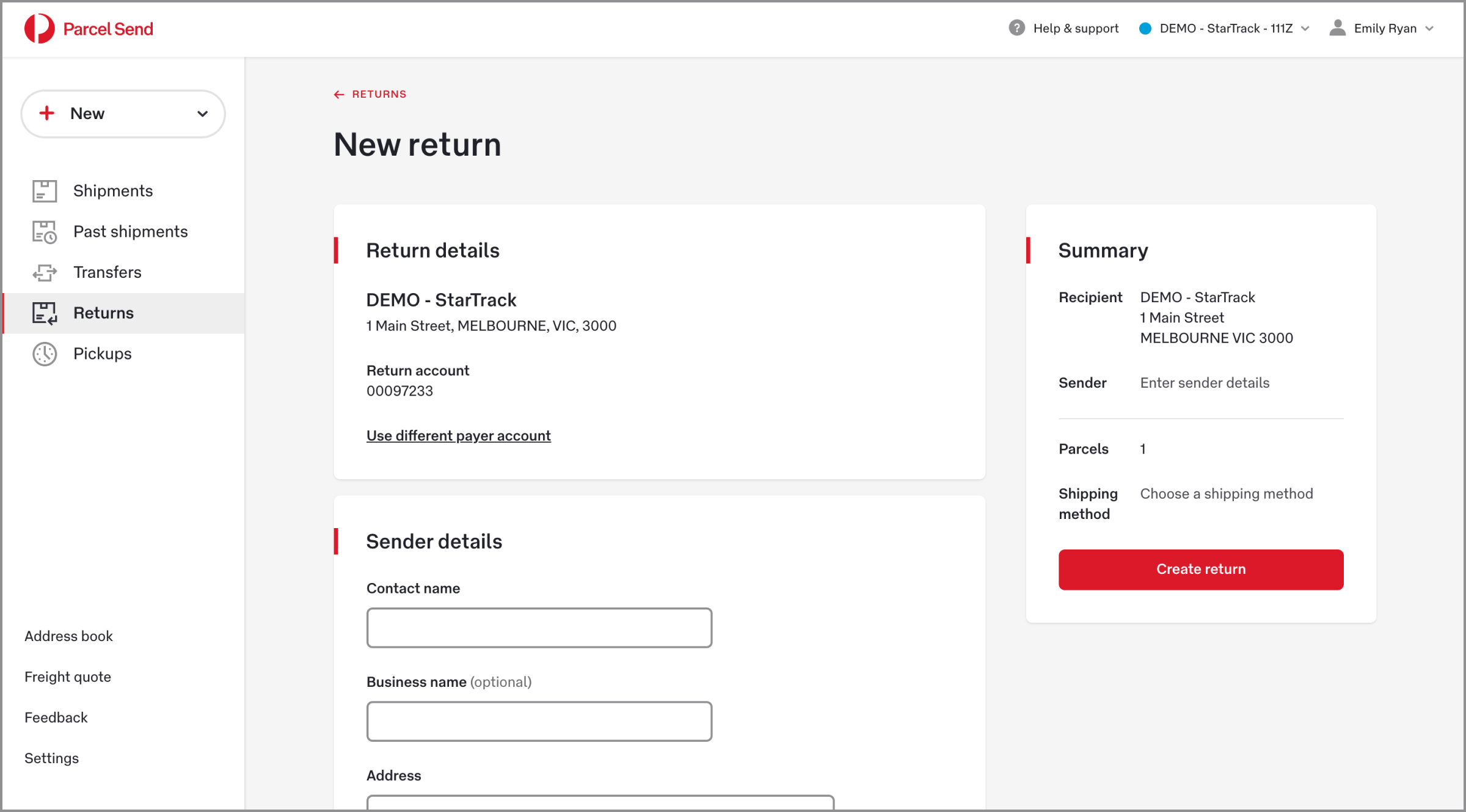
- Click + New and choose Return.
- Check that your Return details are correct. These are the details linked to your account, and this is the address your return will be shipped to.
If you’ve created alternative business details, use the drop-down menu to select the sender.
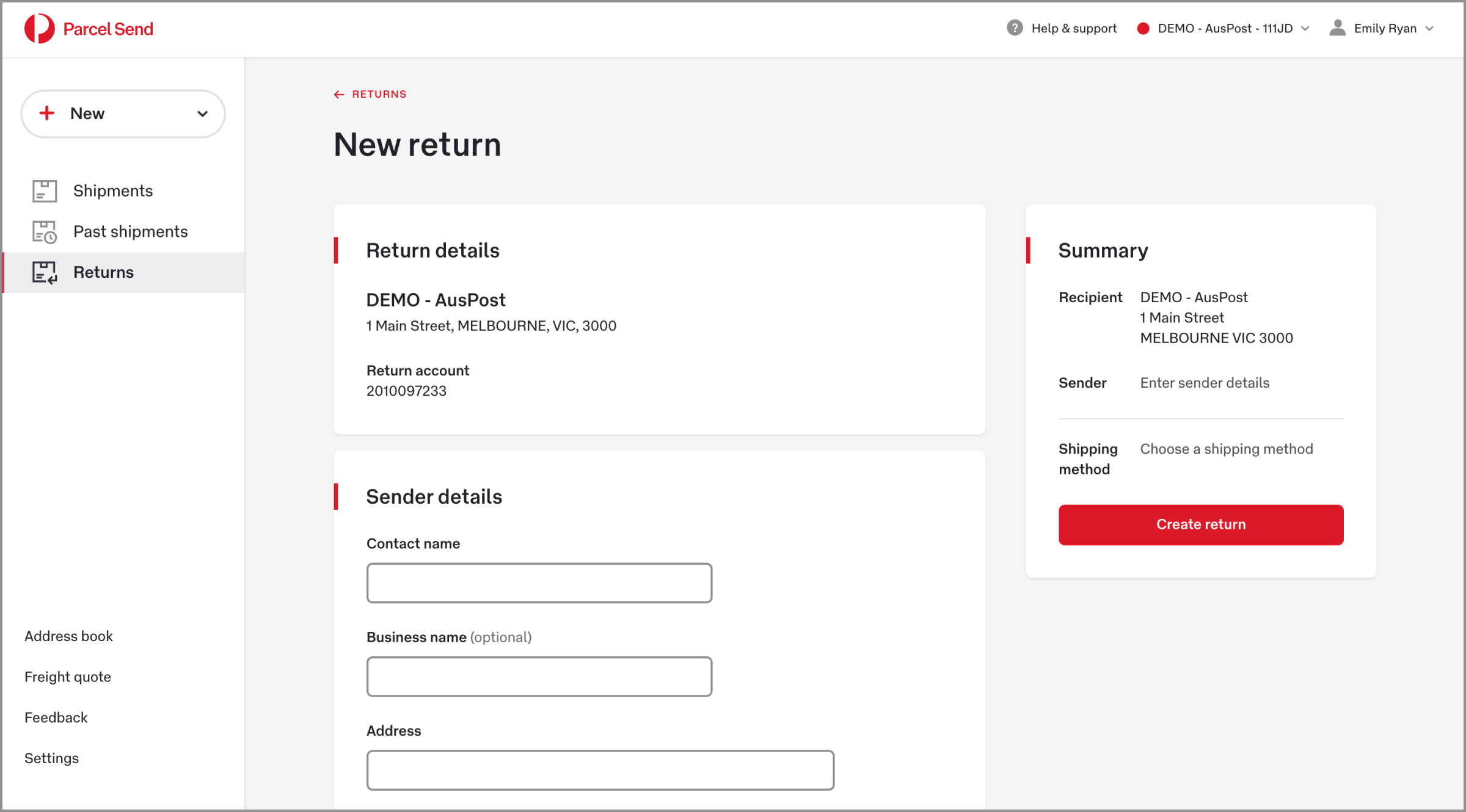
3. Enter the Sender details. The sender is the person making the return.
4. Enter any Sender references you want to include. These will be printed on your label.
5. Enter your Parcel details.
Note on dangerous goods: Australia Post can deliver some exempt dangerous goods, if they meet certain conditions and are correctly packaged and labelled. If you’re shipping exempt dangerous goods, you don’t need to include a Dangerous Goods declaration with your shipment.
To confirm whether your item is exempt , search for it in the Prohibited and Restricted Item List and Packaging Guide (PDF 1.1MB). For limits and labelling information for shipping dangerous goods by air and road, refer to the Dangerous Goods Guide (PDF 2.9MB).
6. Choose your shipping method.
7. Choose your label printing method.
If you choose Email label to sender, make sure the sender’s email address is correct. You won’t be notified if the email delivery fails.
If you choose Print label now you can either print and post the label to the sender, or download the label and email it to the sender yourself.
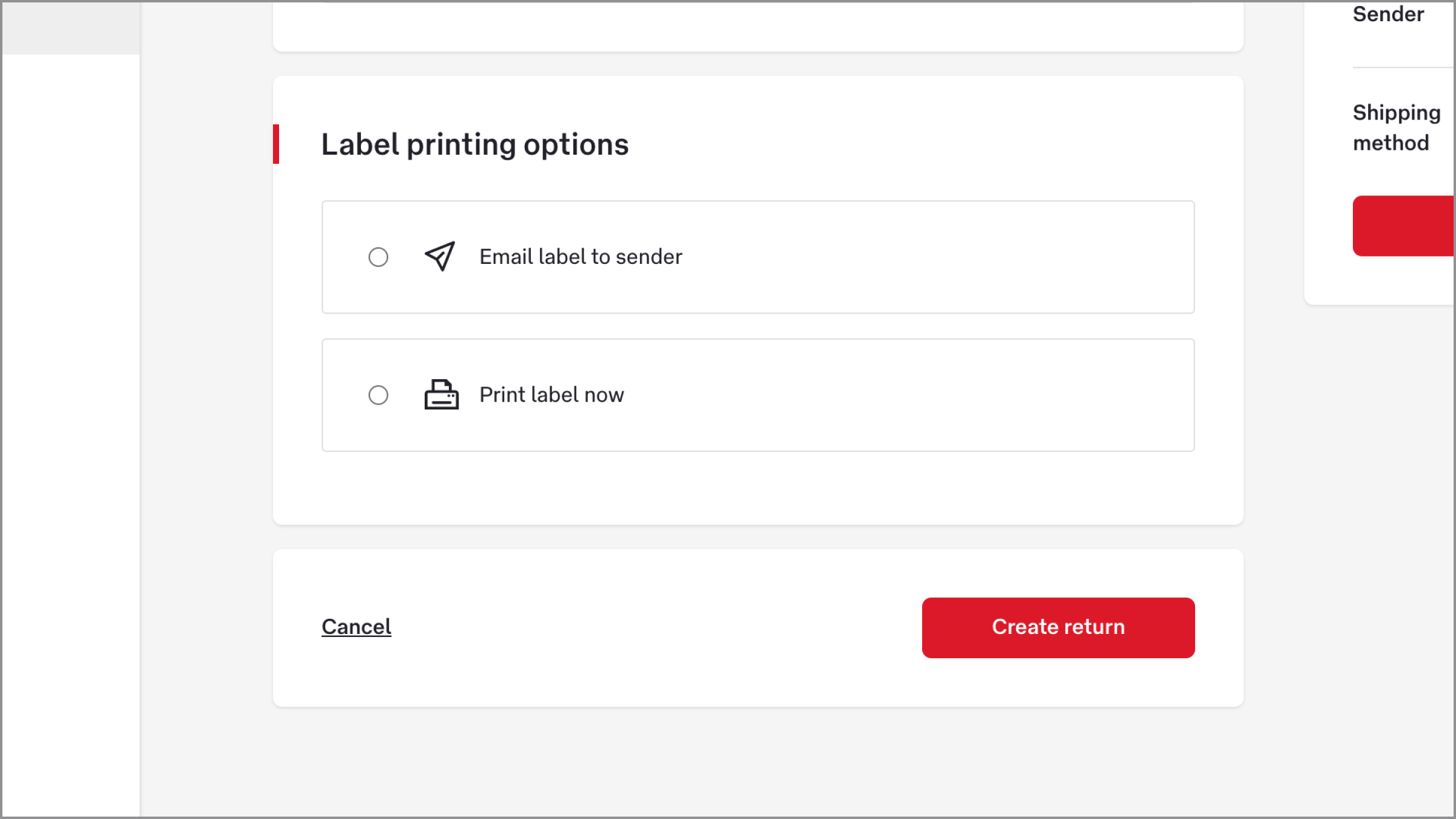
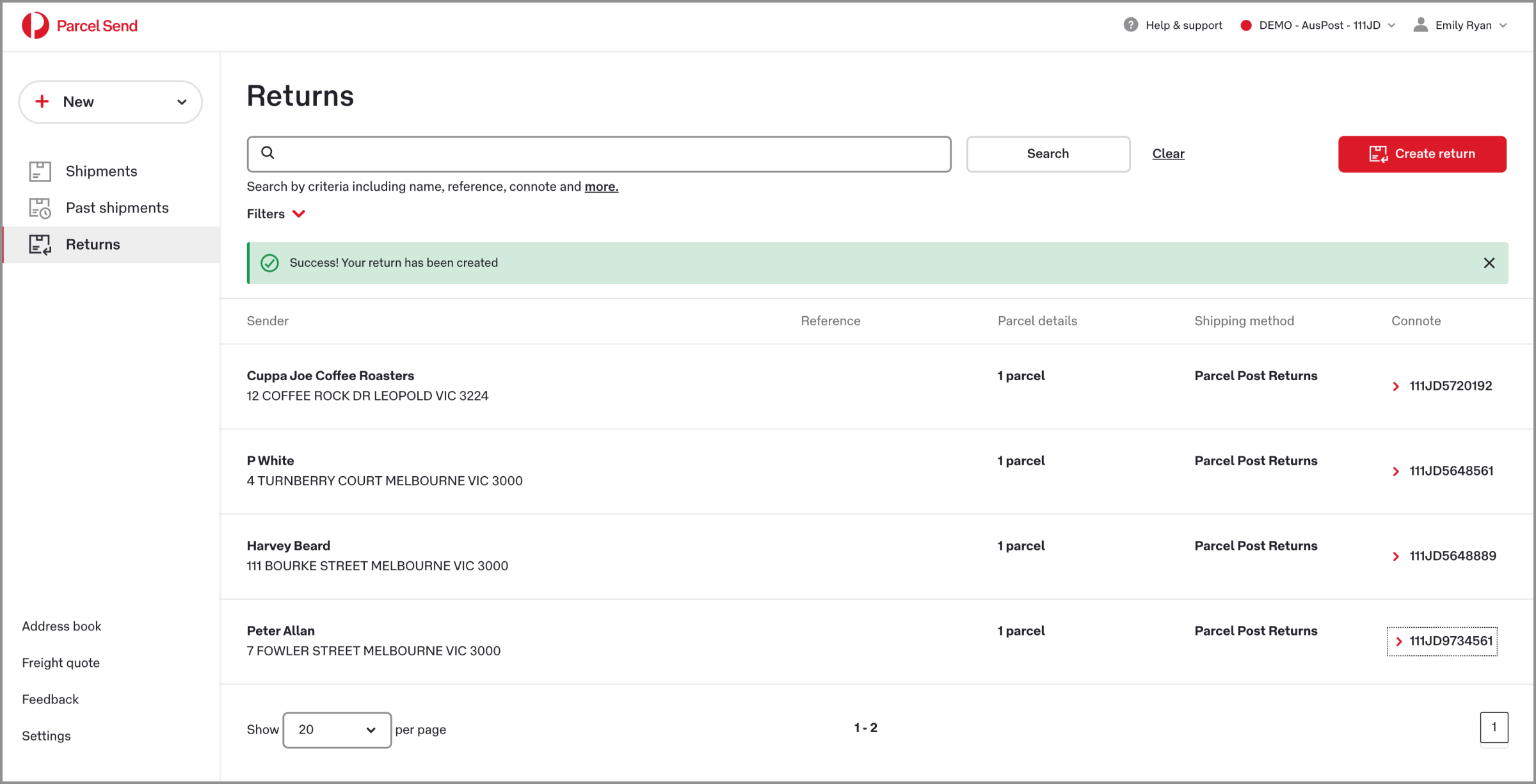
8. Click Create return. Your return will appear on the Returns page.
- Click + New and choose Return.
- Check that your Return details are correct. These are the details linked to your account, and this is the address your return will be shipped to.
If you’ve created alternative business details, use the drop-down menu to select the sender.
The return account is charged by default. You can charge the cost to a different billing account linked to your account, or to a different StarTrack account. To do this, click Use different payer account and enter the payer’s 8-digit account number.
3. Enter the Sender details. The sender is the person making the return.
4. Enter any Special instructions and references you want to include. These will be printed on your label.
5. Enter your Parcel details.
If multiple parcels are being returned, either enter the Quantity of the same parcel being returned (if you have Parcel quantity turned on), or click Add another parcel.
6. Choose your shipping method.
7. If your parcel contains Dangerous goods, fill in the Dangerous goods section.
If you’ve chosen Express shipping, the Dangerous Goods Declaration will automatically print (or be emailed) with your label.
If you’ve chosen Premium shipping, you’ll need to download the IATA dangerous goods declaration. If you’re emailing the return label to the sender, they’ll find a link to the declaration in their email.
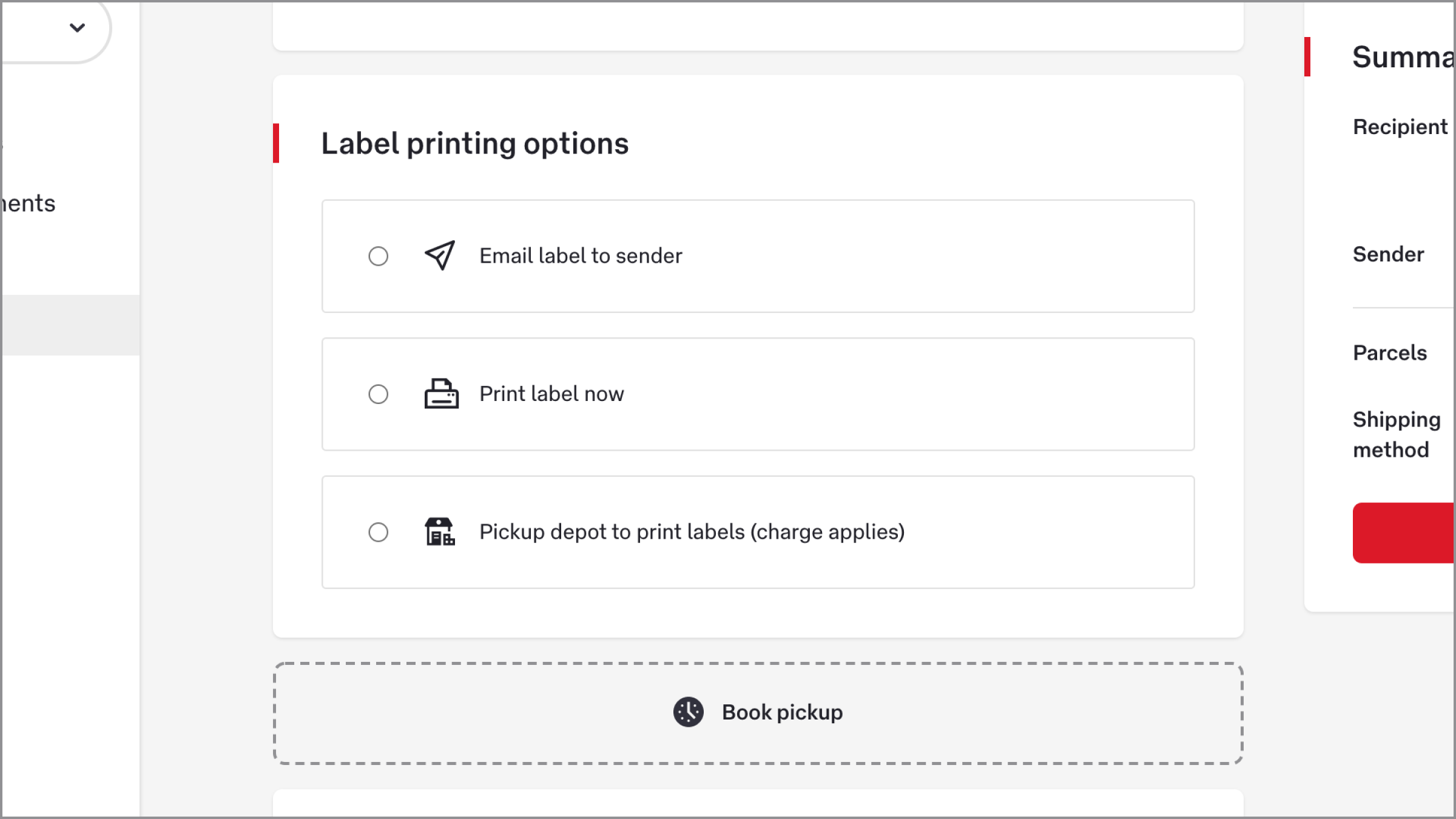
8. Choose your label printing method.
If you choose Email label to sender make sure the sender’s email address is correct. You won’t be notified if the label send isn’t successful.
If you choose Print label now you can either print and post the label to the sender, or download the label and email it to the sender yourself.
If you’re shipping express, you can choose Pickup depot to print labels and the driver who picks up the parcel will arrive with the labels.
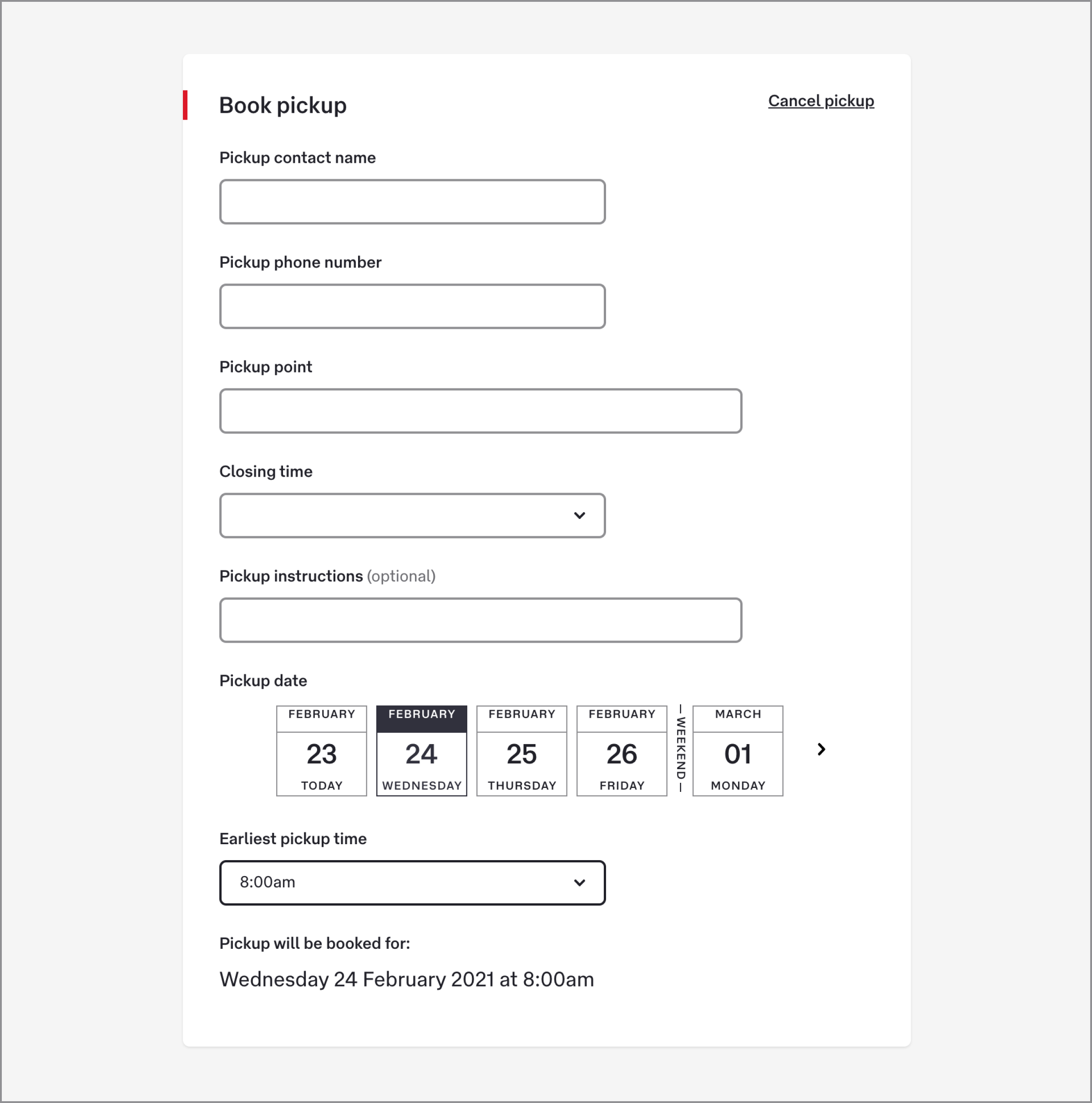
9. Book a pickup (optional).
The person making the return can post their own parcel, or you can book a driver to pick the parcel up.
Enter the contact’s name and number, and specify a Pickup point. This is where the driver will collect the pickup from when they arrive at the sender’s address (e.g., ‘Side loading bay’ or ‘Front door’). Closing time is the latest time the driver can arrive, and Earliest pickup time is the earliest the driver can arrive.
Note: You’ll see a message with the time and date that the ‘Pickup will be booked for’. This is actually the earliest a driver will arrive, but they may come any time before the closing time.
Note: Pickups can’t be changed or cancelled online.
To change or cancel a pickup, call 13 23 45 and quote the pickup booking reference.
Changes or cancellations made by phone are not updated on the Pickups page.
10. Click Create return. Your return will appear on the Returns page.
If you’ve booked a pickup, the details of it can be found in the Pickups page. Quote your booking reference number if you need to contact StarTrack.
Was this helpful?
We read your feedback and use it to improve the help pages for our Parcel Send platform.
Related topics
- Send a shipment within Australia
- Send an international shipment
- Create a transfer
- Book & manage a pickup